The Events Calendar Shortcode & Block 4.0 is now available!
This release focuses on making event displays easier to build, easier to preview, and easier for visitors to filter once events are on the page.
If you use the WordPress block, Elementor widget, or Filter Bar, this update should feel like a noticeable improvement. The block settings are easier to work with, previews are more reliable, and several options that previously required shortcode-style key/value pairs can now be managed directly from the editor.
Here’s what’s new in 4.0.
Block settings now live in the WordPress sidebar
The biggest change in 4.0 is how the WordPress block works inside the editor.
Previously, block settings appeared directly inside the block. That worked, but caused the page layout to “jump” while the preview of the event listing was replaced with the settings instead.
In 4.0, the block settings have moved to the right sidebar in the WordPress block editor. This keeps the page canvas cleaner and makes the block feel more like other native WordPress blocks. You can select the block, adjust the settings from the sidebar, and see the event preview update in the editor.
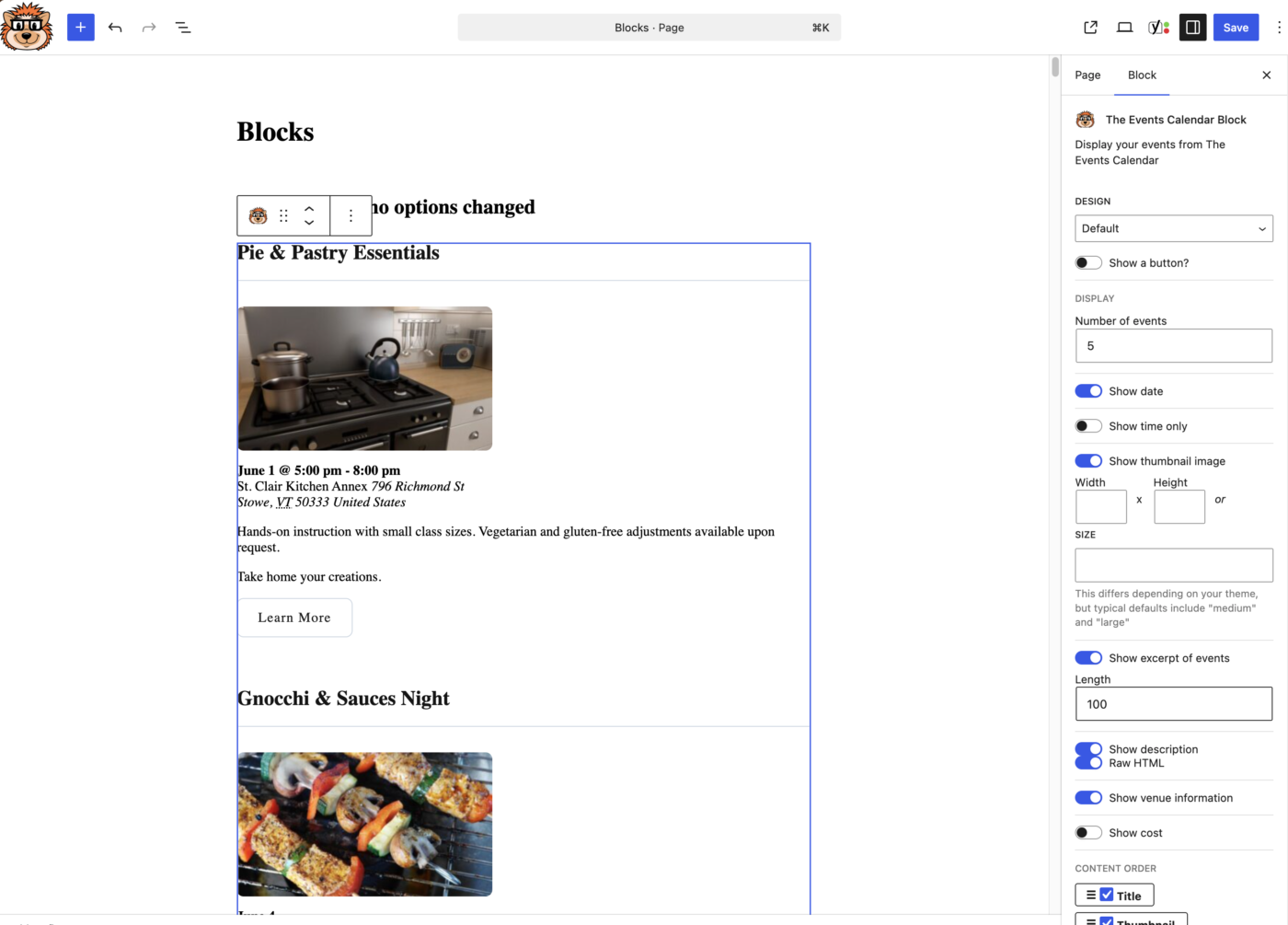
The preview has also been improved so the options shown in the sidebar better match what appears in the preview. That means less guessing when you’re deciding which event details to show, which order to show them in, or how the event list should appear on the page.
This is especially useful if you’re setting up a homepage event section, a landing page, or a page with several different event lists.
More block options, fewer key/value pairs
The WordPress block now includes more built-in settings, so you do not need to rely as much on manually entering shortcode-style key/value pairs.
That makes the block easier to use, especially if you prefer choosing options visually instead of copying parameters from documentation.
You can configure more of the event display directly from the sidebar, update the block, and preview the result in the editor before publishing the page.
This should make everyday setup faster for both new users and existing users who already know which display options they want.
Better handling for content order settings
Version 4.0 also improves how content order settings work inside the block.
The block now handles the relationship between show/hide toggles and the content order controls more reliably. That means the editor should do a better job keeping your selected event details and their display order in sync.
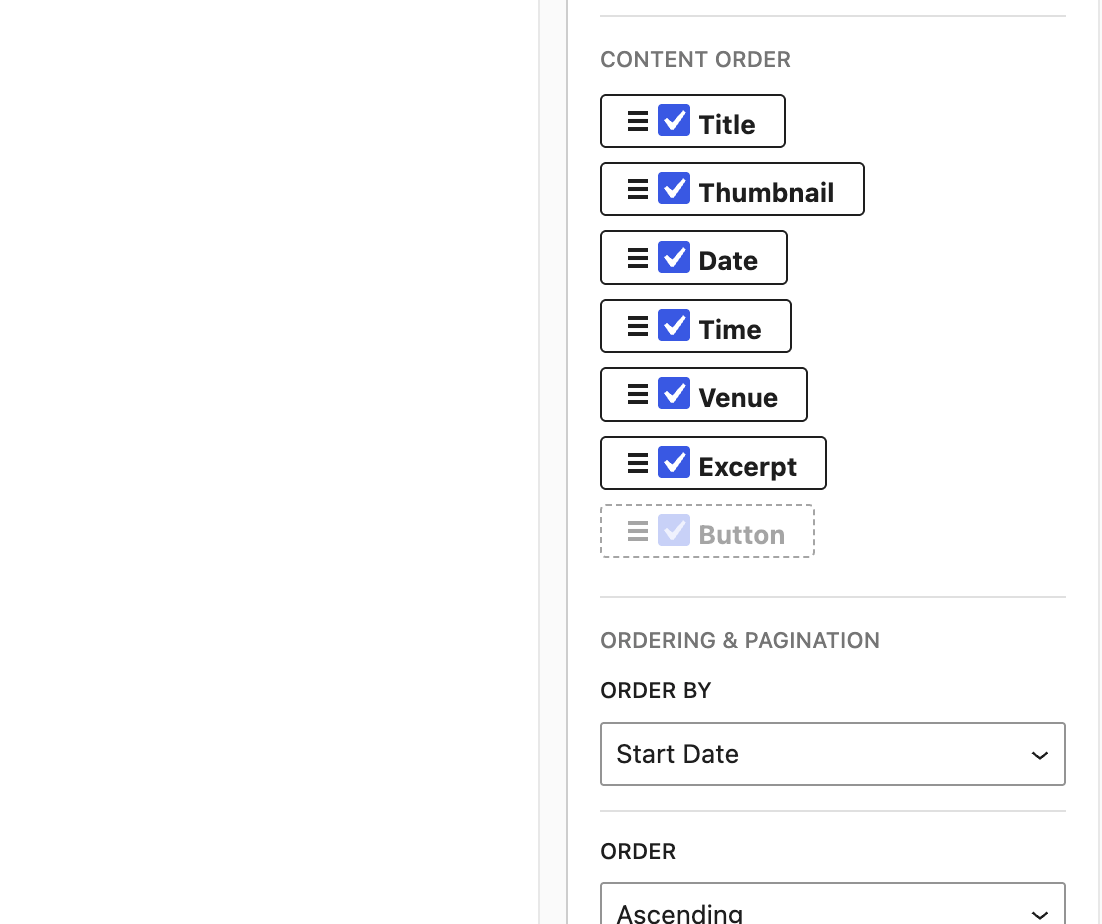
Content order items are also shown consistently instead of being filtered out and reinserted later, which could sometimes lead to a different order than expected.
The practical result is simple: when you configure the event details in the block, the editor should behave more predictably.
More accurate default design settings
The block now sets default design attributes more clearly, so the sidebar options better reflect what you are seeing in the preview.
Instead of looking at an option and wondering why the preview appears a certain way, the editor should now do a better job showing the current settings behind that preview.
Filter Bar settings are now available in the block, Elementor widget and Bricks element
The Filter Bar is one of the most useful features in The Events Calendar Shortcode & Block Pro, especially when you have a lot of events and want to help visitors find the ones that are relevant to them.
In 4.0, configuring the Filter Bar is easier.
You can now enable and configure the Filter Bar directly inside the WordPress block, Elementor widget and Bricks element.
That means you no longer need to rely only on shortcode options when you want to add filters to a visual layout. If you’re building with the WordPress editor, Elementor or Bricks, you can turn on the Filter Bar and choose the available options right where you’re already working.
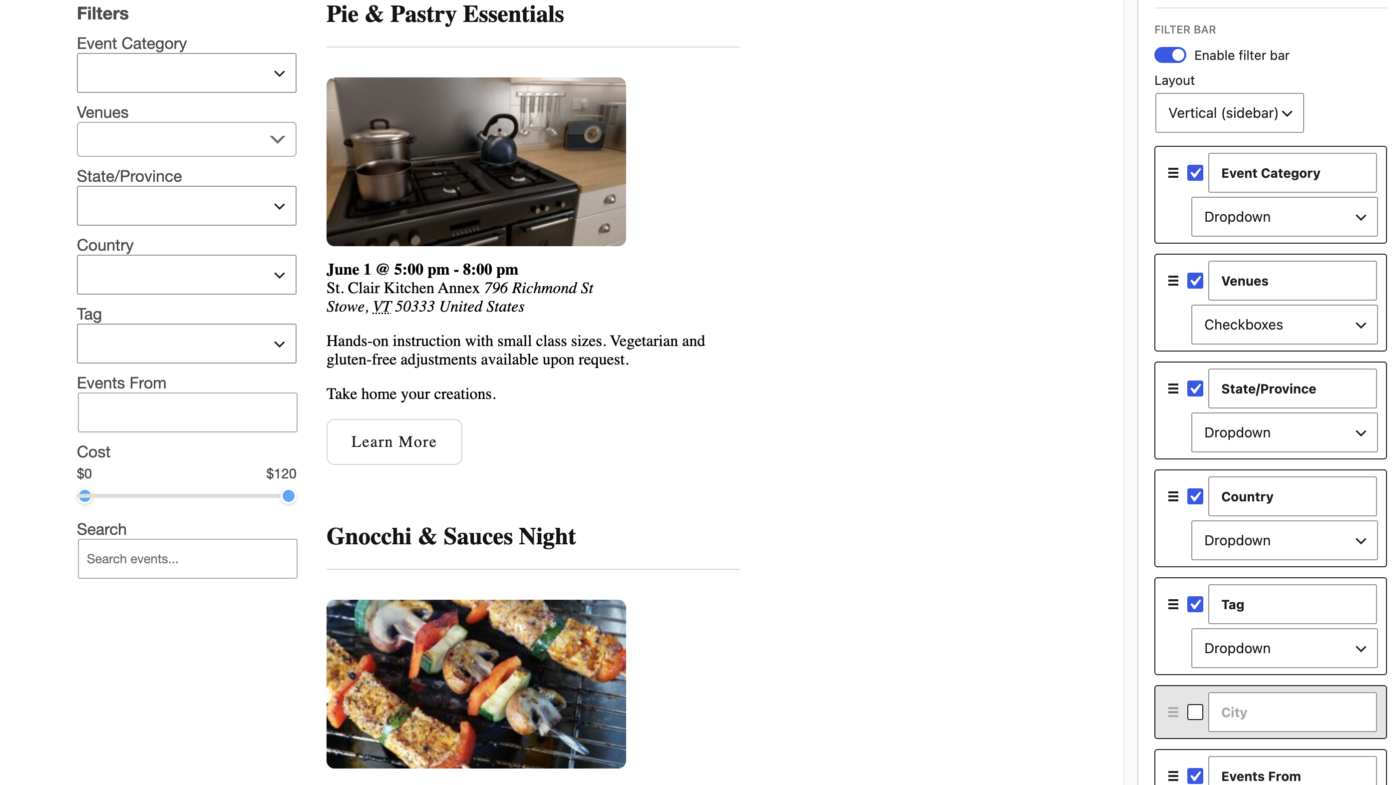
This makes it much faster to build pages like:
- A workshop page where visitors can filter by topic
- A community calendar where visitors can narrow events by category
- A training or webinar page with several event types
- A conference or multi-session event listing
The result is fewer trips to the documentation, fewer copied shortcode examples, and more control inside the editor.
Select multiple Filter Bar options with checkbox dropdowns
Filter Bar dropdowns now support a checkbox-style dropdown option. This lets visitors select more than one filter option at a time.
For example, instead of choosing only one category, a visitor could select multiple categories and view all matching events. That can be especially helpful when your events do not fit neatly into one path.
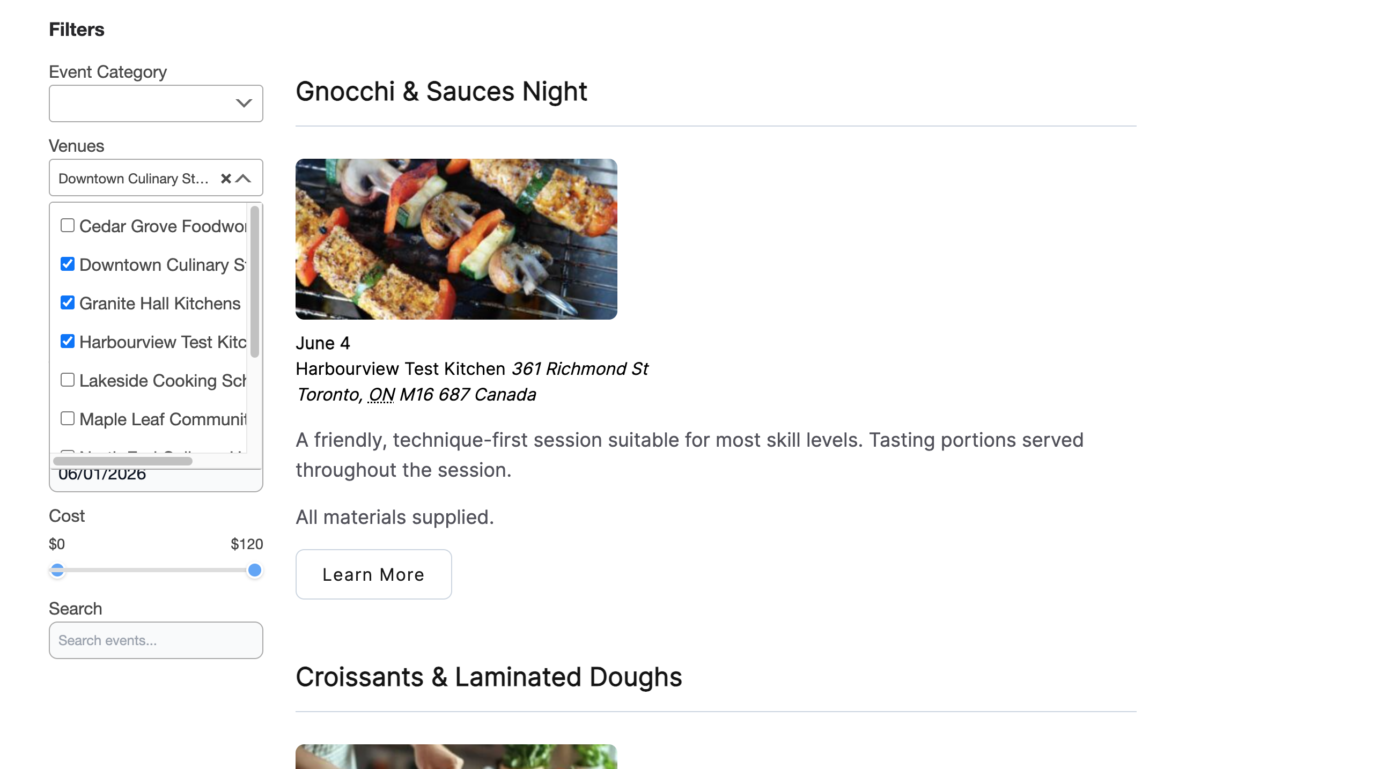
A visitor might want to see both “Workshops” and “Webinars.” Or they may want to filter by several locations, topics, or event types.
The checkbox dropdown gives them more flexibility without taking up a lot of space on the page.
New search option for the Filter Bar
Version 4.0 also adds a new search filter option for the Filter Bar.
This gives visitors another way to find the events they’re looking for, especially when category or date filters are not enough.
Search is helpful when visitors already know part of an event name, speaker, topic, or keyword. Instead of scrolling through the full list, they can type what they’re looking for and narrow the results faster.
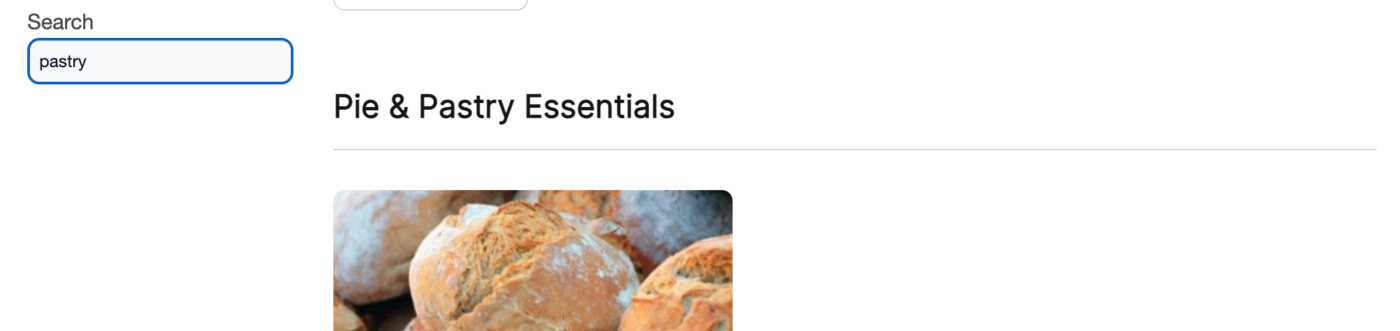
This is a useful addition for sites with larger calendars, recurring events, many categories, or event lists that cover several different topics.
New vertical Filter Bar layout
The Filter Bar now includes a vertical layout option.
The existing horizontal layout works well when you want filters to appear above the event list. But in some designs, a sidebar-style filter area makes more sense.
The new vertical layout gives you another option when designing event pages.
For example, you might use a vertical Filter Bar when:
- Your event list has several filters
- You want filters to appear beside the event results
- You’re building a directory-style events page
- You want a layout that feels more like a search or archive page
Pagination settings are now available in the editor
The Pro version also adds a pagination UI option in the WordPress block.
If you have more events than you want to show at once, pagination can make the page easier to browse. Instead of showing a long list of events, you can display a smaller number and let visitors move through additional pages of results.
This is useful for event archives, larger calendars, or pages where you want to keep the layout compact.
Adding this option directly to the block makes pagination easier to configure when you’re working visually in the WordPress editor.
The v2 design is no longer marked beta
The v2 design has been available for a while now, and many sites have been using it successfully.
In 4.0, the beta flag has been removed.
This does not change how the design works, but it does better reflect where things stand. The v2 design is no longer new or experimental. It’s a stable option for building cleaner, more modern event displays.
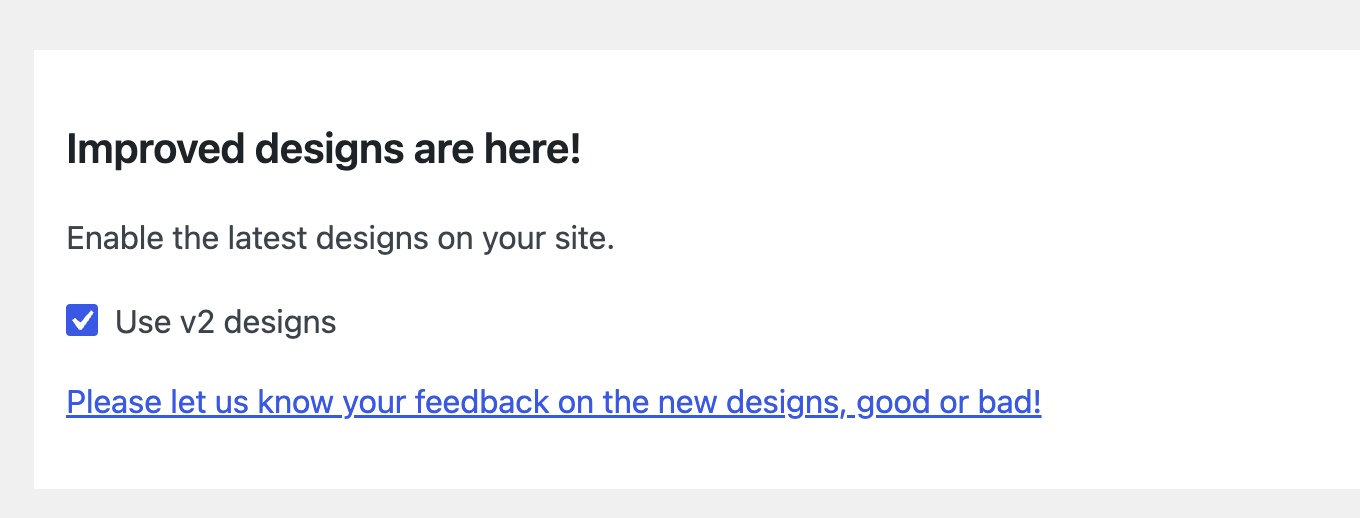
If you have been avoiding it because of the beta label, this is a good time to take another look.
Why update to 4.0?
If you use the free version of The Events Calendar Shortcode & Block, version 4.0 is worth updating for the improved block editing experience.
Settings are easier to find, more options are available directly in the sidebar, and the preview should better match the choices you make in the editor. If you previously avoided the block because key/value pairs felt awkward, this release should make setup feel much more natural.
If you use Pro, the Filter Bar improvements are the biggest reason to update. Being able to configure filters directly in the block and Elementor widget makes the feature much easier to use, especially if you prefer building pages visually.
The new checkbox dropdown, search filter, vertical layout, pagination UI option, and now-stable v2 design also make Pro more flexible for real-world event pages.
Keep your event pages easier to manage
The Events Calendar Shortcode & Block has always been about giving you more control over where events appear on your site.
Version 4.0 builds on that by making more of those controls available directly inside the tools you already use: the WordPress block editor and Elementor.
If you’re using the free version, update to 4.0 for a cleaner block editing experience, better previews, and more settings available without manually entering key/value pairs.
If you’re using Pro, update to 4.0 to take advantage of the new Filter Bar controls, search option, checkbox dropdowns, vertical layout, pagination UI option, and the now-stable v2 design.
And if your license is coming up for renewal, this release is a good reason to stay current. Active licenses give you access to updates like this, along with ongoing improvements, compatibility updates, and new features as The Events Calendar and WordPress continue to evolve.
Update to The Events Calendar Shortcode & Block 4.0 today and start building event pages that are easier to manage and easier for visitors to use.
