Have you ever wanted to show your upcoming events on a map, so visitors can see at a glance what’s happening near them? Maybe you run a festival with venues across town, a business with locations in different cities, or a community calendar where where the event is matters just as much as when.
Events Calendar PRO does include a map view you can embed — but that means paying for Events Calendar PRO (now $259/year as part of their Essentials bundle).
That’s why we’ve added a brand new map design to The Events Calendar Shortcode & Block Pro. It works with just the free The Events Calendar plugin, includes our filter bar at no extra cost, and drops a map of your upcoming events anywhere on your site with one simple shortcode:
[ecs-list-events design=”map”]
Each event becomes a pin on the map. Click a pin and you’ll see the event title, date, and venue, with a link straight to the event page. If several events happen at the same venue (like a recurring event), they share one pin with a scrollable list — no clutter.
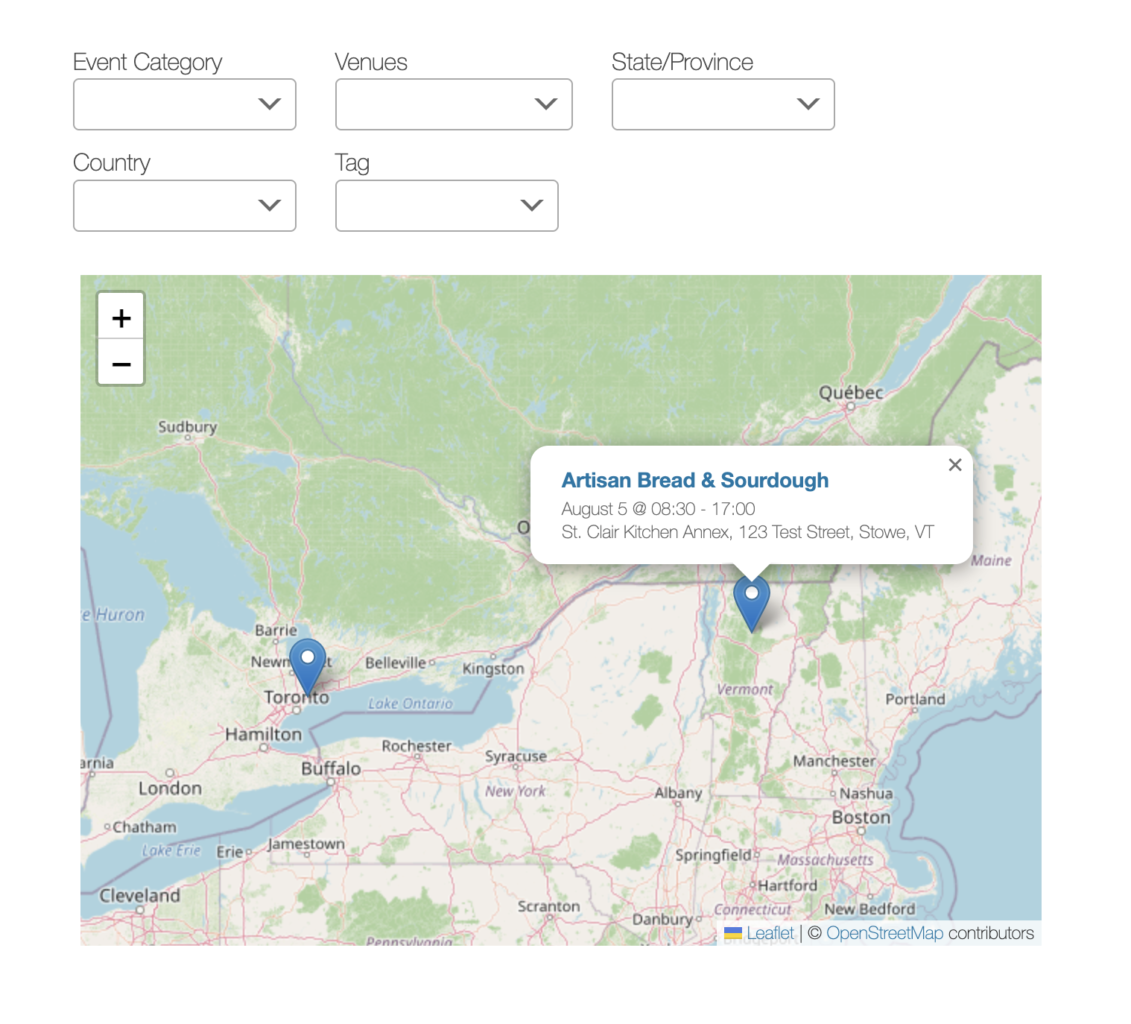
Best of all, it uses OpenStreetMap out of the box — completely free, with no API key and no configuration needed. 🙂
Adding a Map with the Shortcode
Add this shortcode to any post, page, or widget:
[ecs-list-events design=”map”]
All the usual shortcode options work with the map too. For example, to show up to 30 upcoming events in the “festival” category with the event’s featured image in the popup:
[ecs-list-events design=”map” cat=”festival” limit=”30″ thumb=”true”]
A few map-specific options you can add:
- map_height — any CSS height, like map_height=”600px” or map_height=”60vh” (defaults to 450px)
- map_zoom — set a fixed zoom level, or leave it out and the map automatically zooms to fit all your events
- thumb=”true” and excerpt=”true” — show the featured image and a short excerpt in the pin popups
Adding a Map with the Block (or Elementor/Bricks)
If you prefer the WordPress editor, add The Events Calendar Shortcode block to your page and choose Map from the Design dropdown. You’ll see a live preview right in the editor, along with Map Height and Map Zoom settings in the sidebar.
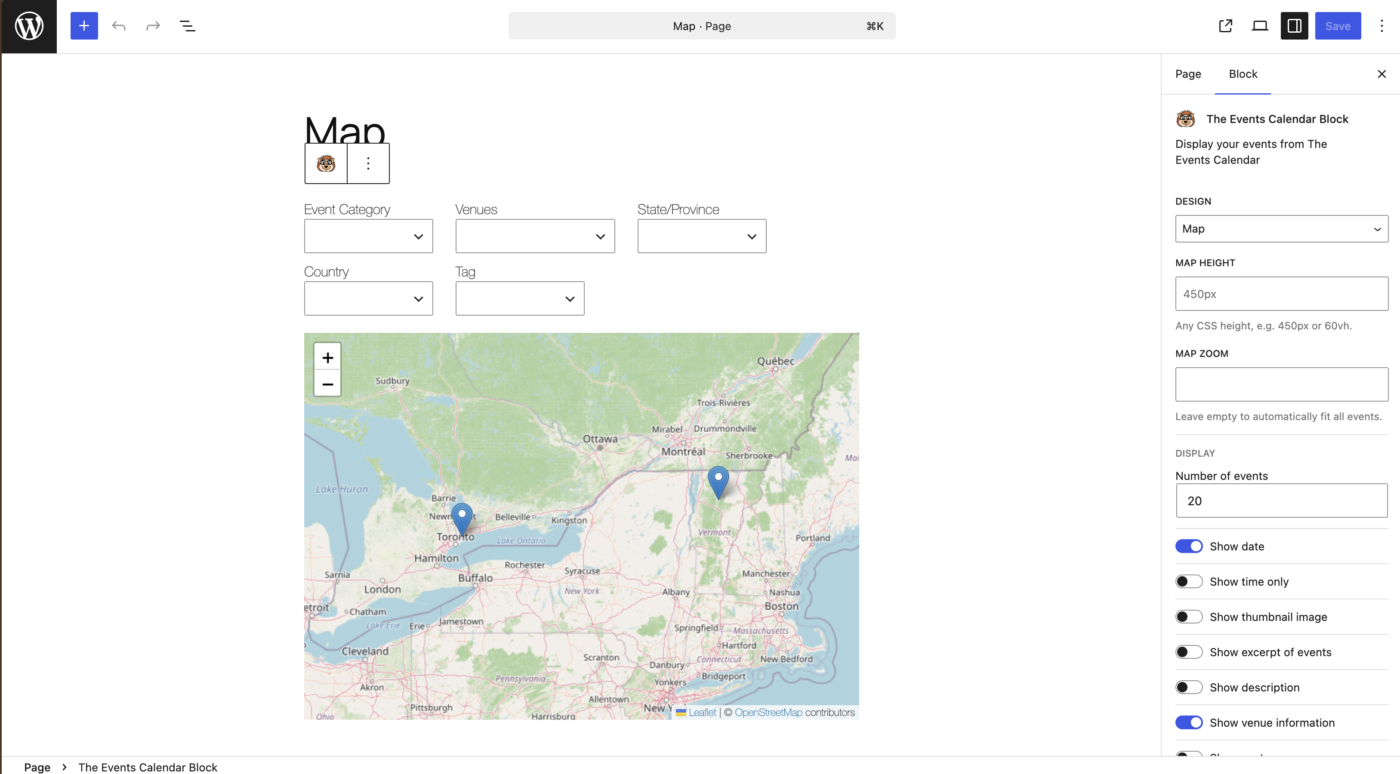
The Map design is also available in our Elementor widget and Bricks element.
Let Visitors Filter the Map
This is where the map design really shines. The filter bar that’s included with The Events Calendar Shortcode & Block Pro works with the map — just add one attribute:
[ecs-list-events design=”map” filterbar=”true”]
Visitors get dropdowns for categories, tags, venues, dates and more right above the map, and the pins update instantly as they filter — no page reload. Want a map of just this weekend’s outdoor events? A couple of clicks.
Where Do the Map Locations Come From?
Here’s the part we’re really excited about. To place a pin, each venue needs a latitude and longitude.
If you’re using Events Calendar PRO, you’re already set — we use the same coordinates ECP saves for your venues.
If you’re not using Events Calendar PRO, our plugin now fills that gap for you (normally you’d have to pay for ECP just to get venue coordinates!). You get two options:
Option 1: Look up coordinates automatically (free)
Go to Events → Shortcode & Block and you’ll find a new Venue Map Coordinates section. Tick the checkbox to let the plugin look up coordinates automatically from each venue’s address, using the free OpenStreetMap Nominatim service.
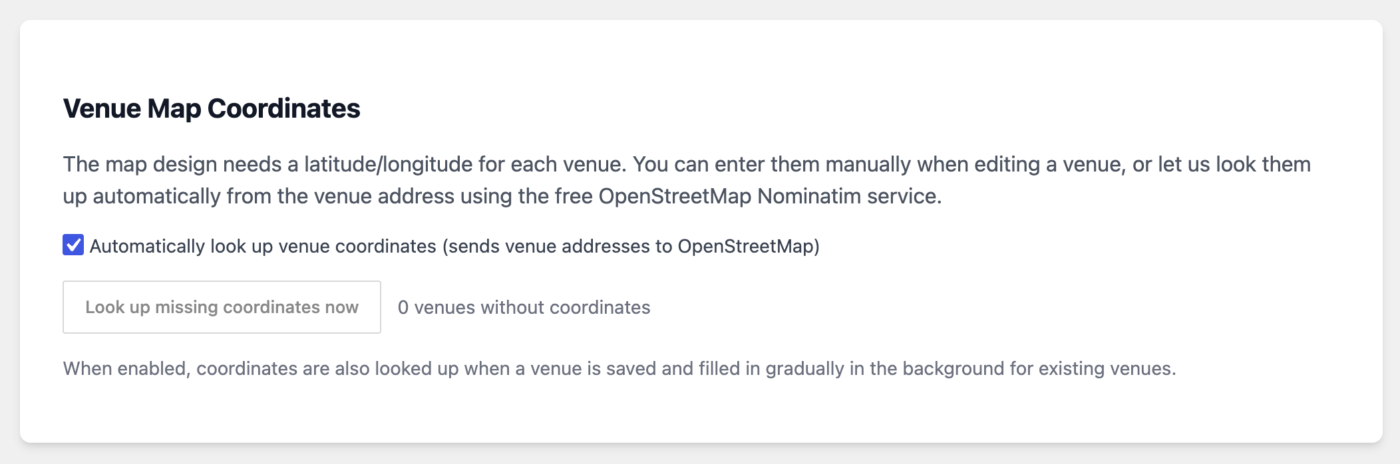
Because this sends your venue addresses to OpenStreetMap, it’s entirely opt-in — nothing is sent until you turn it on. Once enabled:
- Click Look up missing coordinates now to fill in your existing venues right away
- New venues get their coordinates looked up automatically when you save them
- If you change a venue’s address, the coordinates update automatically
- Any venues that are missed get filled in gradually in the background
Option 2: Enter coordinates manually
When editing any venue, you’ll find new Latitude and Longitude fields right below the map options — the same spot Events Calendar PRO puts them. Handy for venues with tricky addresses, or if you’d rather not use the automatic lookup at all.
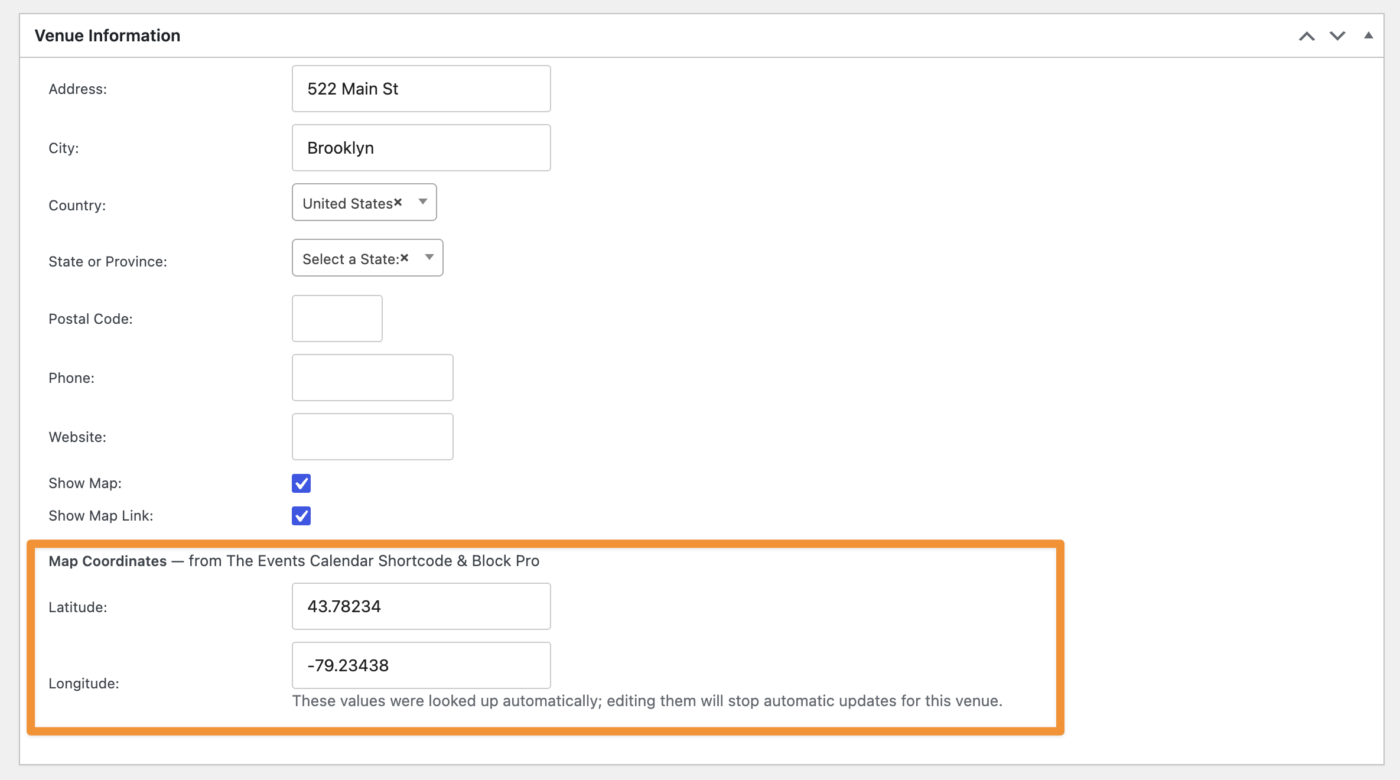
If you enter coordinates manually, the automatic lookup will never overwrite them.
Prefer Google Maps?
The map uses OpenStreetMap by default since it needs zero setup. But if you have a Google Maps API key saved in The Events Calendar’s settings (under Events → Settings → APIs), you can switch any map over to Google:
[ecs-list-events design=”map”]
If there’s no API key set, the shortcode falls back to OpenStreetMap automatically, so your map will never show up broken.
Wrapping Up
With the new map design you can put a filterable map of your events anywhere on your site — no Events Calendar PRO, no extra Filter Bar add-on, no API keys, and no plugin-hopping to get venue coordinates. Combine it with categories, tags, venues, date ranges, and all the other shortcode options to build exactly the map your visitors need.
The map design is available now in The Events Calendar Shortcode & Block Pro. Already have a license? Just update to the latest version and try:
[ecs-list-events design=”map”]
Have feedback on the new map design, good or bad? Let us know — we’d love to hear how you’re using it!
