Event Calendar Newsletter now works with FluentCRM. Pull upcoming events from any supported calendar into your campaigns, sequences, and recurring emails with a simple Smart Code.
How to Add Your WordPress Events to FluentCRM Campaigns
If you use FluentCRM to email your list, you’ve probably wanted an easy way to include upcoming events without copy-pasting HTML every week. Good news: Event Calendar Newsletter now supports FluentCRM.
That means you can pull events from The Events Calendar, Events Manager, Modern Events Calendar, Google Calendar, and the other calendars we support straight into your FluentCRM campaigns.
In this post, we’ll walk through how to set it up, how to use it in a one-off campaign, and how to run an automated weekly digest that only sends when you actually have events.
What you need
- Event Calendar Newsletter Pro installed and activated
- FluentCRM (free or Pro) installed and activated
- At least one upcoming event in a supported calendar
Step 1: Create a Saved Template
A Saved Template is simply a reusable setup: which calendar to pull from, which date range, how events should look, and any filters (category, venue, and so on).
- In WordPress, go to Event Calendar Newsletter
- Choose your calendar and the events you want (for example, the next 14 days, or a specific category)
- Design the output the way you want it to appear in the email
- Save it as a Saved Template
You can create as many as you like. A common setup is one template for “all upcoming events,” plus separate ones for each category so different segments get different digests.
Step 2: Copy the FluentCRM Smart Code
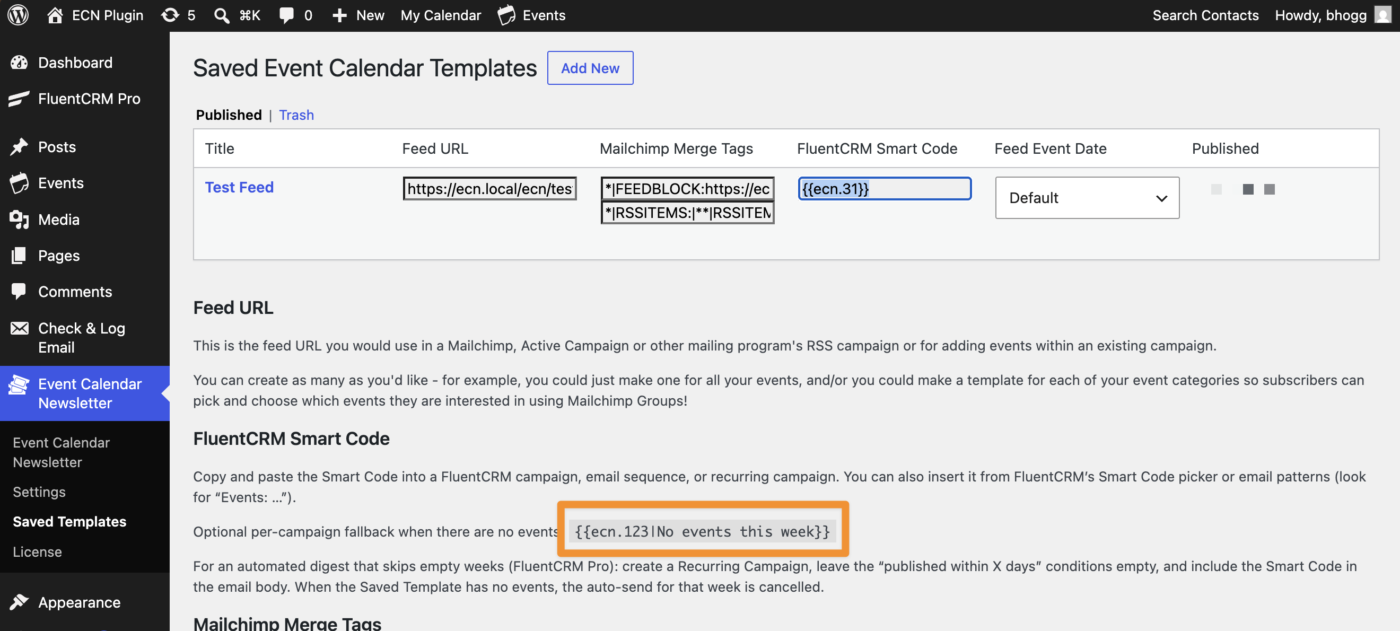
Once FluentCRM is active on your site, your Saved Templates screen will show a FluentCRM Smart Code column.
It looks like this:
{{ecn.123}}(Your number will match the Saved Template ID.)
Click the field to select it, then copy it.
You can also insert the same code from inside FluentCRM’s Smart Code picker, or from the email pattern list (look for patterns named Events: …).
Tip: If you want a custom message when there are no events, use a fallback like this:
{{ecn.123|No events this week}}Otherwise, you can set a site-wide fallback under Event Calendar Newsletter → Settings.
Step 3: Paste it into a FluentCRM campaign
- Open FluentCRM and create (or edit) a campaign, email sequence, or recurring campaign
- In the email body, paste your Smart Code — or insert the matching Events pattern / Smart Code from the picker
- Preview or send a test email
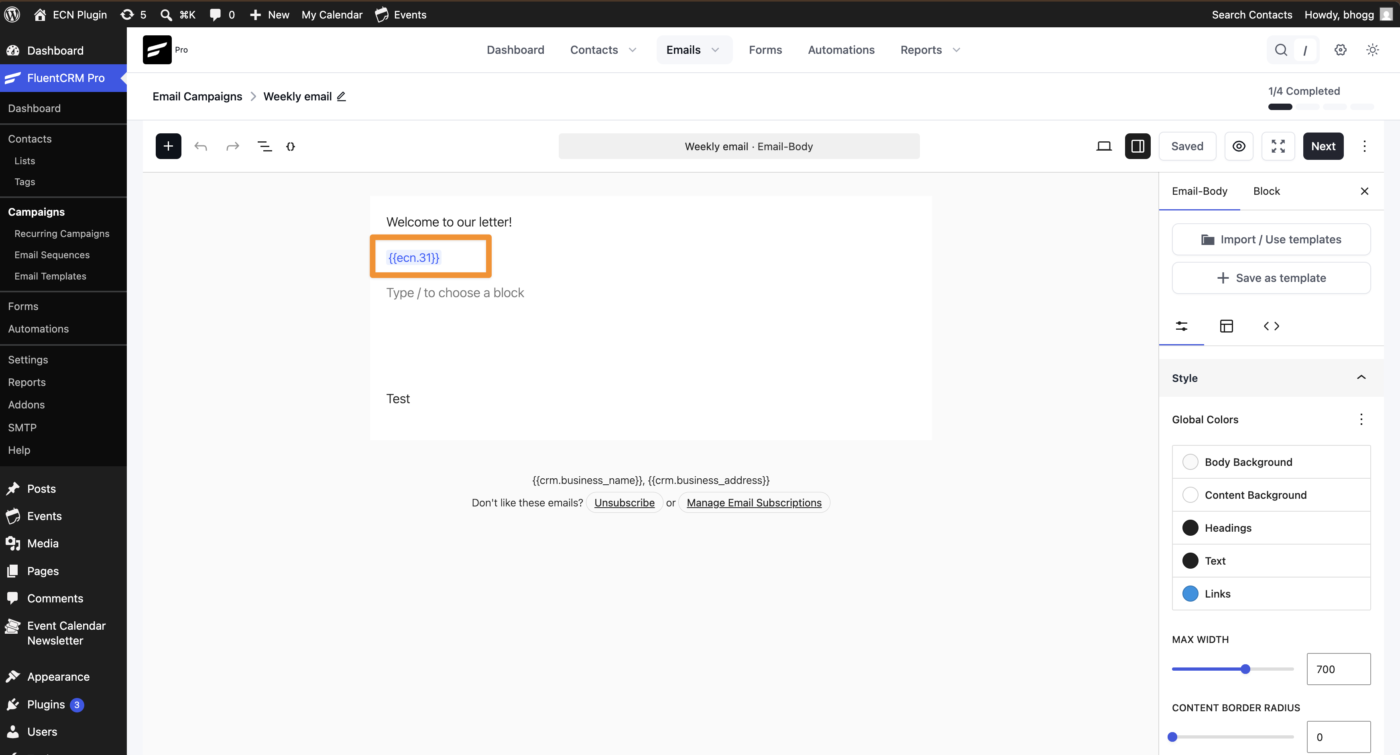
When the email goes out, Event Calendar Newsletter fetches the latest matching events and inserts the formatted HTML in place of the Smart Code. No more manually updating the campaign every week.
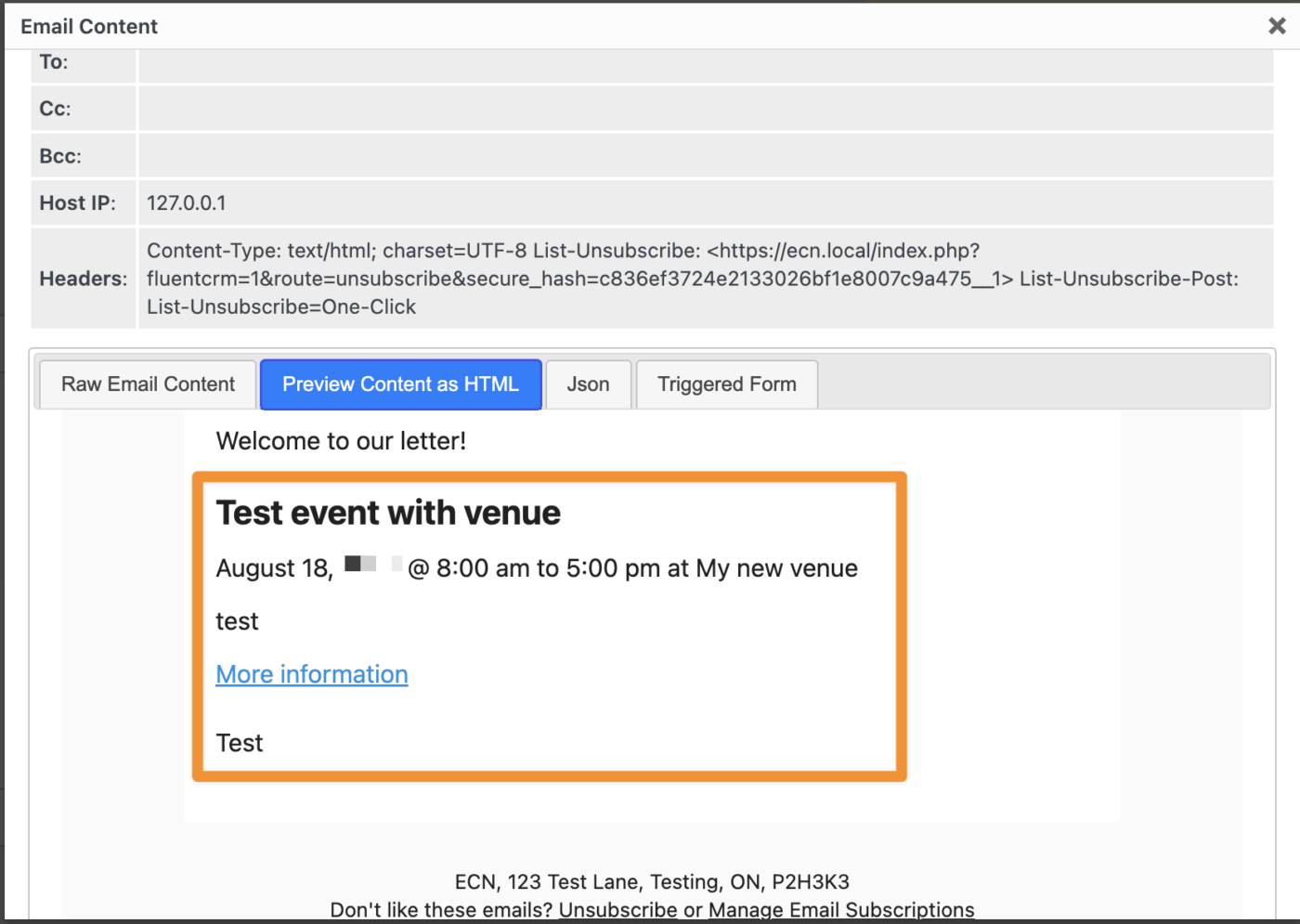
That’s it for a one-off or manually scheduled send.
Want an automated weekly digest?
If you’d rather not click Send every week, you’ve got two good options depending on which FluentCRM plan you use.
Option A: Recurring Campaign (FluentCRM Pro)
This is the closest thing to a Mailchimp-style RSS campaign for events.
- Create a Recurring Campaign in FluentCRM (daily, weekly, or monthly)
- Put your
{{ecn.123}}Smart Code in the email body - Leave the “published within X days” content conditions empty (those check when a post was published, not when an event is happening)
- Set your recipients and activate the campaign
When it’s time to send, Event Calendar Newsletter checks whether that Saved Template has any events. If it doesn’t, that auto-send is cancelled — so your list doesn’t get an empty “here are your events!” email.
Option B: Automation trigger (FluentCRM free or Pro)
Prefer to keep things inside Automations? Use the Scheduled Events Email trigger:
- Create a new Automation in FluentCRM
- Choose the Scheduled Events Email trigger (under Event Calendar Newsletter)
- Pick your Saved Template, frequency (daily or weekly), day, and send time
- Add a Send Custom Email action that includes the same
{{ecn.ID}}Smart Code - Publish the automation
The automation only runs when that template has events. If there’s nothing coming up, it quietly skips that cycle.
Tip: For a classic newsletter with per-issue campaign stats, Recurring Campaigns are usually the better fit. Use the automation trigger when you want the digest inside a larger funnel, or you’re on FluentCRM free.
What about the Latest Posts block?
FluentCRM’s Latest Posts block can list event post types, but it orders by publish date — not event date — and it won’t use your Event Calendar Newsletter formatting (date, time, venue, custom layout, and so on).
That’s exactly why the Smart Code approach exists: you get event-date ordering and the full template design you already configured.
Wrapping up
With FluentCRM support in Event Calendar Newsletter, you can stop rebuilding event HTML by hand and let your Saved Templates feed your campaigns automatically — whether you send one-off emails, recurring digests, or automation-based sends.
If you don’t have Event Calendar Newsletter Pro yet, grab it here and you’ll be set up in a few minutes. Already a customer? Update to the latest version, open your Saved Templates, and you’ll see the FluentCRM Smart Code ready to copy.
Questions about getting this working with your calendar? Get in touch, we’re happy to help!
